• Guides
    • English
    • 日本語
  • API Documentation
  • Feature Overviews
  • UX Building Blocks
  • Sliders

    Show / Hide Table of Contents
    • Getting Started with MRTK
      • Release Notes
      • MRTK Package Contents
      • Updating from earlier versions
      • Upgrading from HTK
      • Building and Deploying MRTK
      • NuGet Packages
      • Getting started with MRTK and XR SDK
      • Performance
      • Hologram Stabilization
    • Architecture
      • Overview
      • Framework and Runtime
      • Input System
        • Terminology
        • Core System
        • Controllers, Pointers, and Focus
      • Systems, Extension Services and Data Providers
    • Feature Overviews
      • Boundary System
        • Boundary System Overview
        • Configuring the Boundary Visualization
      • Camera System
        • Camera System Overview
        • Camera Settings Providers
          • Windows Mixed Reality Camera Settings
          • Unity AR Camera Settings [Experimental]
          • Creating a camera settings provider
      • Cross Platform Support
        • Configure MRTK for iOS and Android
      • Detecting Platform Capabilities
      • Diagnostics System
        • Diagnostics System Overview
        • Configuring the Diagnostics System
        • Using the Visual Profiler
      • Extension Services
        • Extension Service Creation Wizard
        • Scene Transition Service Overview
        • Hand Physics Service Overview
      • Input System
        • Input Overview
        • Input Actions
        • Input Events
        • Input Providers
          • Input Providers Overview
          • Creating an input data provider
        • Controllers
        • Eyes
        • Gaze
        • Gestures
        • Hands
        • How to Add Near Interaction
        • In-Editor Input Simulation
        • Pointers
        • Voice Input
          • Dictation
          • Speech (Command and Control)
      • Multi Scene System
        • Multi Scene System Overview
        • Scene Types
        • Content Scene Loading
        • Monitoring Content Loading
        • Lighting Scene Operations
      • Packaging
        • MRTK Packages
        • MRTK Modularization
      • Profiles
        • Profiles Overview
        • Configuration Guide
      • Rendering
        • Material Instance Overview
        • Shaders
          • MRTK Standard Shader
      • Services
        • What makes a mixed reality feature
        • What are the MixedRealityServiceRegistry and IMixedRealityServiceRegistrar
        • Extension services
      • Spatial Awareness System
        • Spatial Awareness Overview
        • Spatial Observers
          • Configuring Observers for Device
          • Configuring Observers for Editor
          • Controlling Observers via Code
          • Creating a custom Observer
      • Teleport System Overview
      • Tools
        • Dependency Window
        • Extension Service Creation Wizard
        • Holographic Remoting
        • Input Animation Recording
          • Input Animation File Format Specification
        • Optimize Window
        • Runtime tools
          • Controller Mapping tool
      • UX Building Blocks
        • Interactable
        • Button
        • Bounding Box
        • Object Manipulation
        • Sliders
        • Fingertip Visualization
        • App Bar
        • Object Collection
        • Slate
        • System Keyboard
        • Tooltips
        • Solvers
      • Example Scenes
        • Examples Hub
        • Hand Interaction Example
        • Eye Tracking Interaction Example
      • Experimental
        • Scrolling Object Collection
        • Hand Coach UX
        • Pulse Shader
    • Contributing
      • Contributing Overview
      • Coding Guidelines
      • Writing and Running Tests
      • Writing Documentation
      • Pull Requests
      • Experimental Features
      • Breaking Changes
      • How to use DocFX
    • Planning
      • Roadmap
    • Notice
    • Authors

    Sliders

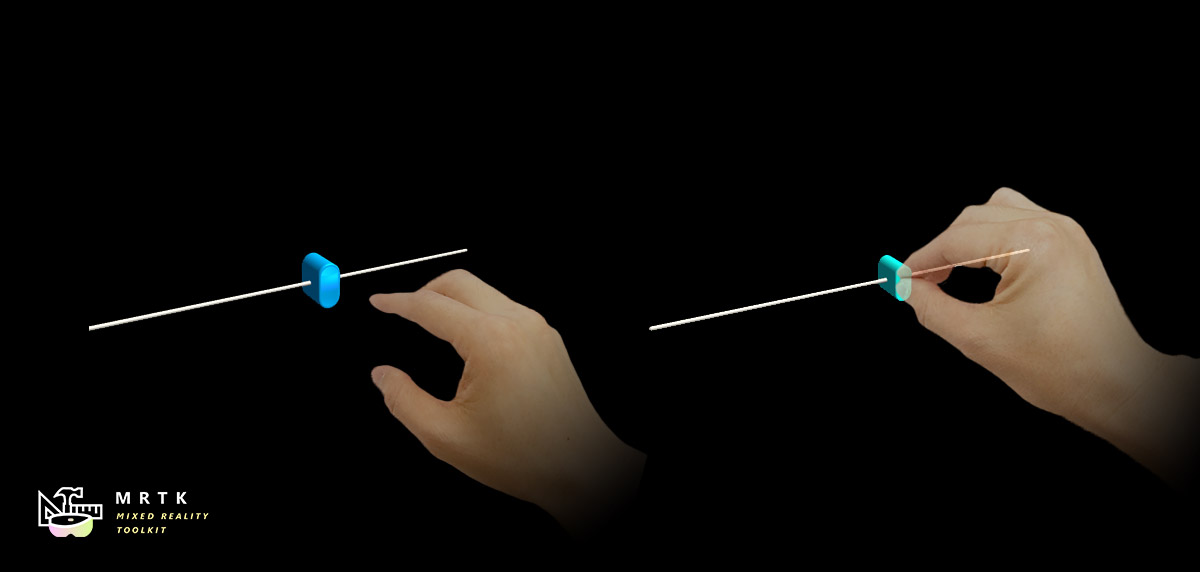
    Slider example

    Sliders are UI components that allow you to continuously change a value by moving a slider on a track. Currently the Pinch Slider can be moved by directly grabbing the slider, either directly or at a distance. Sliders work on AR and VR, using motion controllers, hands, or Gesture + Voice.

    Example scene

    You can find examples in the SliderExample scene under: MixedRealityToolkit.Examples/Demos/UX/Slider/Scenes/

    How to use sliders

    Drag and drop the PinchSlider prefab into the scene hierarchy. If you want to modify or create your own slider, remember to do the following:

    • Make sure your that your thumb object has a collider on it. In the PinchSlider prefab, the collider is on SliderThumb/Button_AnimationContainer/Slider_Button
    • Make sure that the object containing the collider also has a Near Interaction Grabbable component on it, if you want to be able to grab the slider near.

    We also recommend using the following hierarchy

    • PinchSlider - Contains the sliderComponent
      • SliderThumb - Contains the movable thumb
      • TrackVisuals - Containing the track and any other visuals
      • OtherVisuals - Containing any other visuals

    Slider events

    Sliders expose the following events:

    • OnValueUpdated - Called whenever the slider value changes
    • OnInteractionStarted - Called when the user grabs the slider
    • OnInteractionEnded - Called when the user releases the slider
    • OnHoverEntered - Called when the user's hand / controller hovers over the slider, using either near or far interaction.
    • OnHoverExited - Called when the user's hand / controller is no longer near the slider.

    Configuring slider bound and axis

    You can directly move the starting and end points of the slider by moving the handles in the Scene:
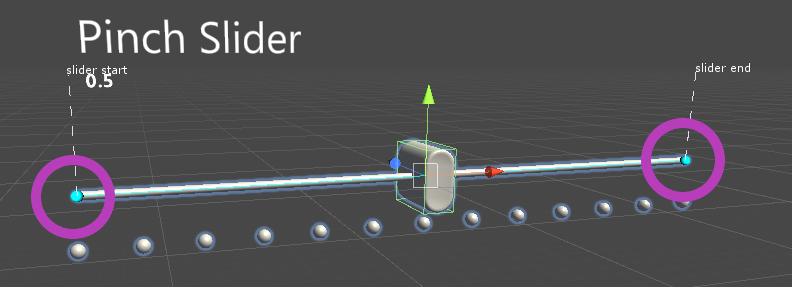
    Sliders Config

    You can also specify the axis (in local space) of the slider via the Slider Axis field

    If you cannot use the handles, you can instead specify the start and end points of the slider via the Slider Start Distance and Slider End Distance fields. These specify start / end position of slider as a distance from the slider's center, in local coordinates. This means that once you set the slider start and end distances as you want them, you can scale the slider to be smaller or larger without needing to update the start and end distances.

    Inspector properties

    Thumb Root The gameobject that contains the slider thumb.

    Slider Value The value of the slider.

    Track Visuals The gameobject that contains the desired track visuals that goes along the slider.

    Tick Marks The gameobject that contains the desired tick marks that goes along the slider.

    Thumb Visuals The gameobject that contains the desired thumb visual that goes along the slider.

    Slider Axis The axis the slider moves along.

    Slider Start Distance Where the slider track starts, as distance from center along slider axis, in local space units.

    Slider End Distance Where the slider track ends, as distance from center along slider axis, in local space units.

    When user updates the slider axis value in editor then if Track Visuals or Tick Visuals are specified then their transform is updated. Specifically, their local position is reset and their local rotation is set to match the Slider Axis orientation. Their scale isn't modified. If Tick Marks have a Grid Object Collection component then the Layout and CellWidth or CellHeight is updated accordingly to match the Slider Axis.

    • Improve this Doc
    In This Article
    • Example scene
    • How to use sliders
    • Slider events
    • Configuring slider bound and axis
    • Inspector properties
    Back to top Generated by DocFX